Note
Vertex AI Extensions are in preview and subject to change. Contact your Google Cloud representative to learn how to access this feature.
In addition to using Vertex AI with MongoDB Vector Search to implement RAG, you can use Vertex AI Extensions to further customize how you use Vertex AI models to interact with Atlas. In this tutorial, you create a Vertex AI Extension that allows you to query your data in Atlas in real-time by using natural language.
Background
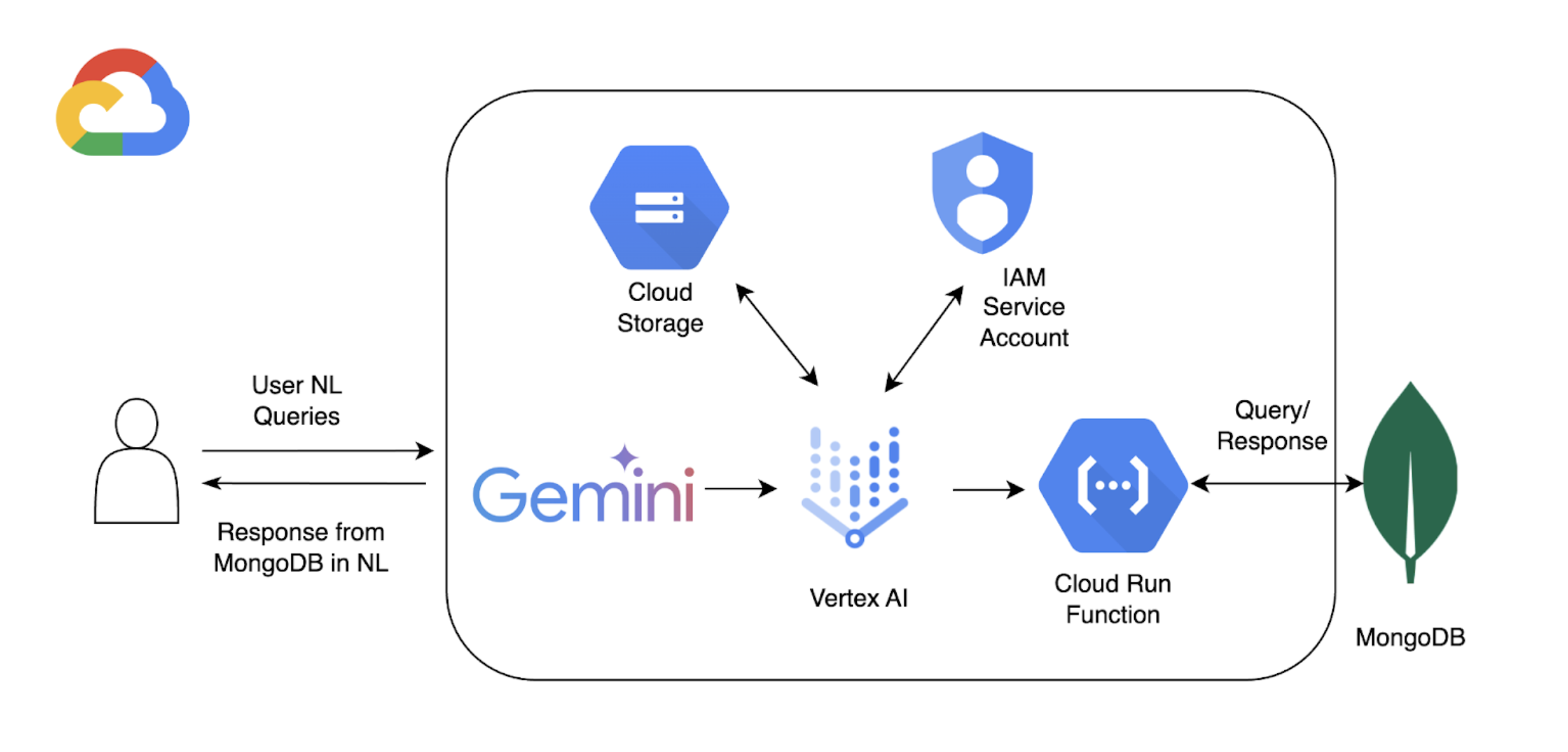
This tutorial uses the following components to enable natural language querying with Atlas:
Google Cloud Vertex AI SDK to manage AI models and enable custom extensions for Vertex AI. This tutorial uses the Gemini 1.5 Pro model.
Google Cloud Run to deploy a function that serves as an API endpoint between Vertex AI and Atlas.
OpenAPI 3 Specification for MongoDB API to define how natural language queries map to MongoDB operations. To learn more, see OpenAPI Specification.
Vertex AI Extensions to enable real-time interaction with Atlas from Vertex AI and configure how natural language queries are processed.
Google Cloud Secrets Manager to store your MongoDB API keys.
Note
For detailed code and set-up instructions, see the GitHub repository for this example.
Prerequisites
Before you start, you must have the following:
A MongoDB Atlas account. To sign up, use the Google Cloud Marketplace or register a new account.
An Atlas cluster with the sample dataset loaded. To learn more, see Create an Atlas Infinite or Atlas Core Cluster.
A Google Cloud project.
A Google Cloud Storage bucket for storing the OpenAPI specification.
The following APIs enabled for your project:
Cloud Build API
Cloud Functions API
Cloud Logging API
Cloud Pub/Sub API
A Colab Enterprise environment.
Create a Google Cloud Run Function
In this section, you create a Google Cloud Run function that serves as an API endpoint between Vertex AI Extension and your Atlas cluster. The function handles authentication, connects to your Atlas cluster, and performs database operations based on the requests from Vertex AI.
Create a new function.
In the Google Cloud console, open the Cloud Run page and click Write a function.
Configure the function.
Specify a function name and Google Cloud region where you want to deploy your function.
Select the latest Python version available as a Runtime.
In the Authentication section, select Allow unauthenticated invocations.
Use the default values for the remaining settings, and then click Next.
For detailed configuration steps, refer to the Cloud Run documentation.
Create a Vertex AI Extension
In this section, you create a Vertex AI Extension that enables natural language querying on your data in Atlas by using the Gemini 1.5 Pro model. This extension uses an OpenAPI specification and the Cloud Run function you created to map natural language to database operations and query your data in Atlas.
To implement this extension, you use an interactive Python notebook, which allows you to run Python code snippets individually. For this tutorial, you create a notebook named mongodb-vertex-ai-extension.ipynb in an Colab Enterprise environment.
Run Natural Language Queries
In Vertex AI, click Extensions in the left navigation menu. Your new extension named MongoDB Vertex API Interpreter appears in the list of extensions.
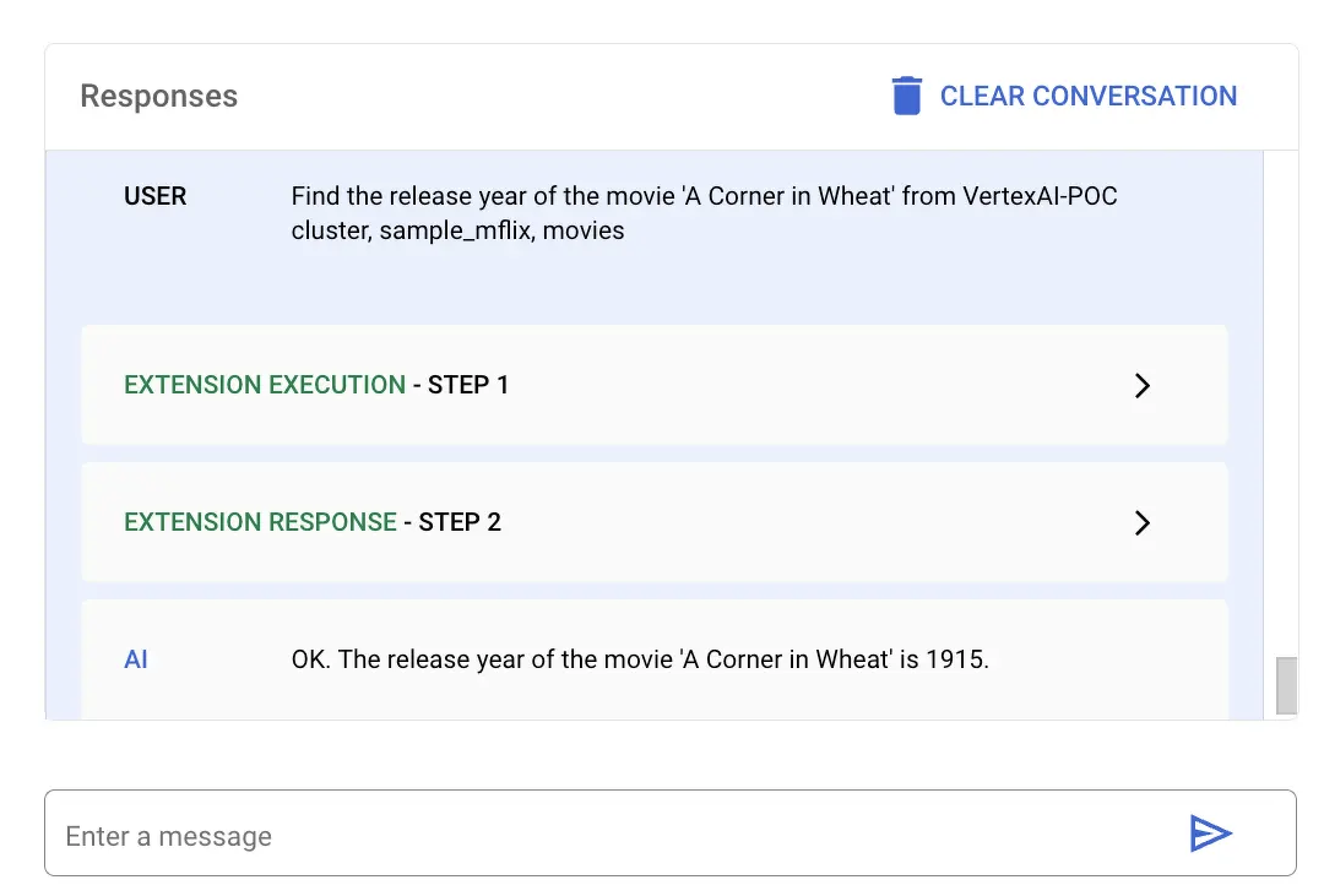
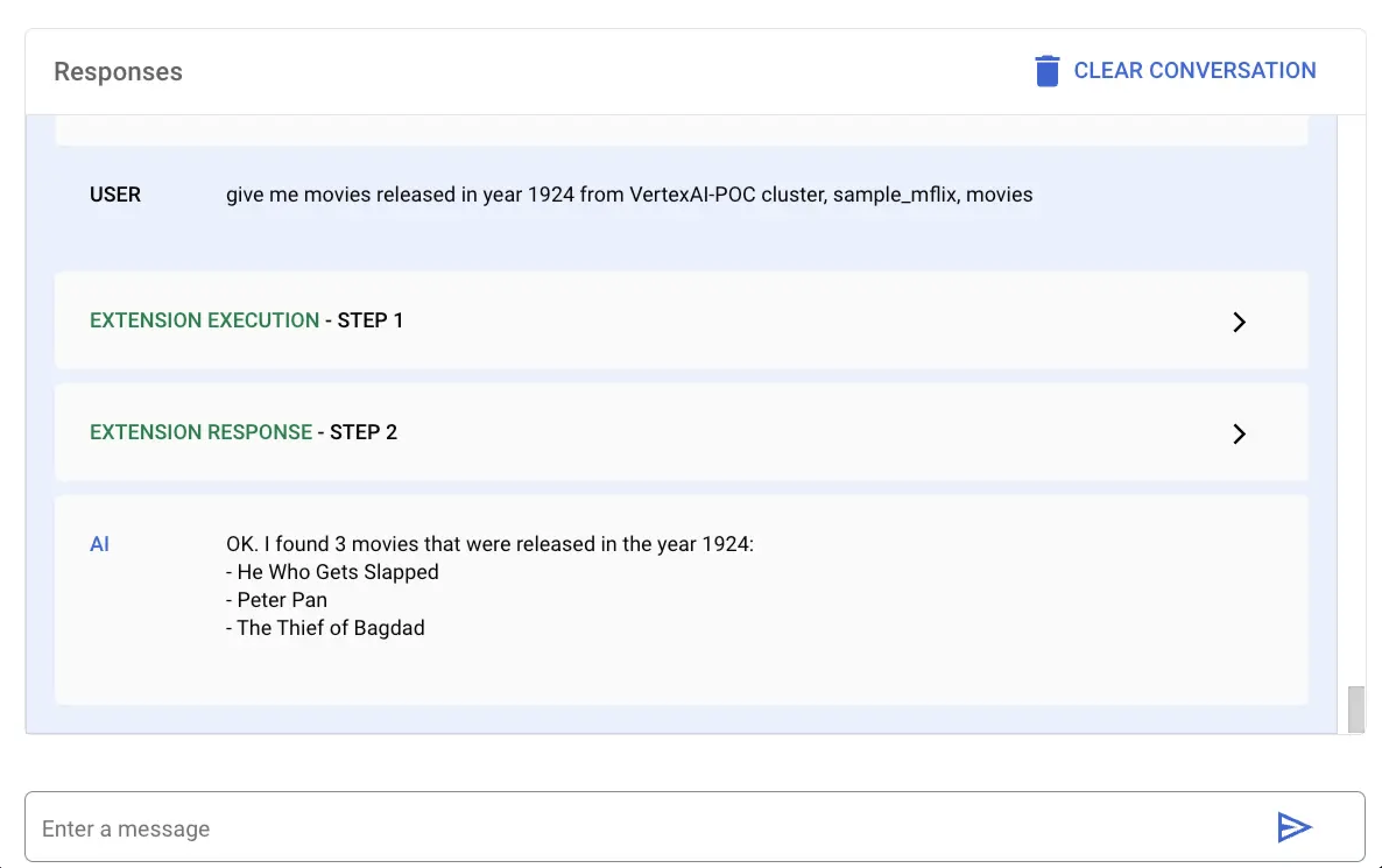
The following examples demonstrates two different natural language queries you can use to query your data in Atlas: