You can integrate MongoDB with Langflow to add MongoDB-backed retrieval to your AI agents from a visual interface. This tutorial builds a flow that configures an agent to use MongoDB. In this tutorial, you perform the following tasks:
Configure MongoDB as a vector store and ingest a MongoDB blog post into it.
Build an agent that uses your MongoDB collection as a retrieval tool.
Run the flow and ask a question about the blog post content.
Background
Langflow is an open-source visual framework for building AI pipelines and agents. Instead of writing code, you build a flow by dragging and connecting components on a canvas. Each component performs a discrete task, such as splitting text or querying a language model.
Langflow provides a MongoDB Atlas component that uses MongoDB Vector Search as a vector store. You can connect this component to other components in your flow to ingest data, run a similarity search, or give an agent a tool to query your collection. The component creates a MongoDB Vector Search index on your collection the first time you run a search, if a matching index doesn't already exist.
About the Flow
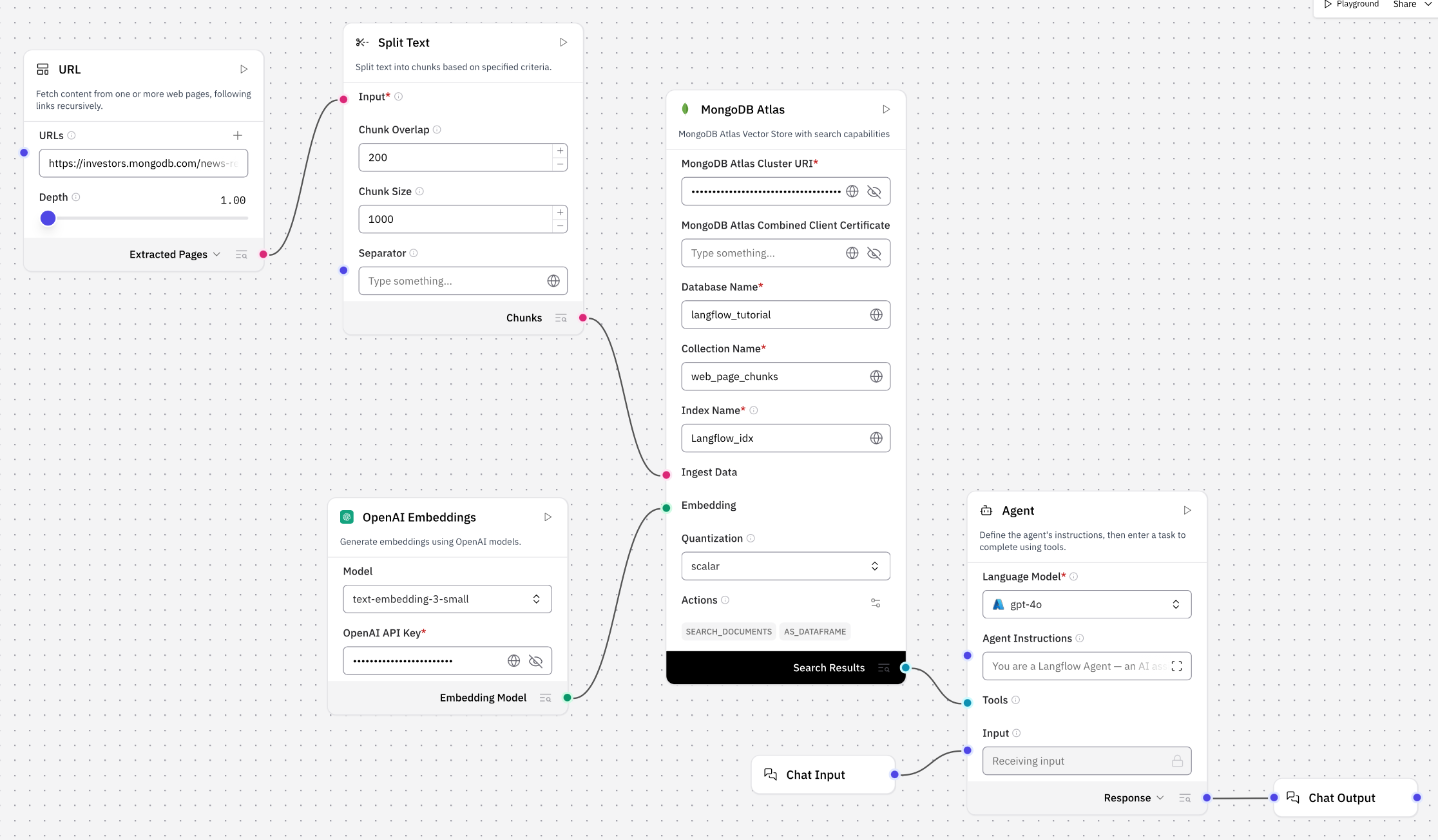
In this tutorial, you build the following flow:
URL → Split Text → ┐ ├── MongoDB Atlas → ┐ Embeddings → ┘ ├── Agent → Chat Output Chat Input → ┘
The flow performs the following tasks:
The URL component fetches the content of a MongoDB blog post, which describes the MongoDB 9.0 release.
The Split Text component splits that content into chunks.
The MongoDB Atlas component embeds each chunk and writes it to your collection.
When you send a message related to the MongoDB 9.0 blog post, the Agent component calls the MongoDB Atlas component as a tool to search your collection for relevant chunks.
The agent uses any retrieved chunks to generate a response, which the Chat Output component returns.
Prerequisites
To complete this tutorial, you must have the following resources:
Langflow installed on your machine. To learn more, see Install Langflow in the Langflow documentation.
One of the following MongoDB cluster types:
An Atlas cluster running MongoDB version 6.0.11, 7.0.2, or later. Ensure that your IP address is included in your Atlas project's access list.
A local Atlas deployment created using Python and Docker. Install
atlas-local-lib-py(pip install atlas-local-lib-py) to programmatically create and manage local deployments. To learn more, see the atlas-local-lib-py repository.A MongoDB Community cluster with Search and Vector Search installed.
API key for an embedding model and a language model provider that Langflow supports, such as OpenAI. To learn more about the supported models, see Embedding Model and Language Model in the Langflow documentation.
Considerations
When working with Langflow and MongoDB, consider the following:
For MongoDB Atlas users, ensure that you add your Langflow host's IP address to your project's IP access list. To learn more, see Configure IP Access List Entries.
The Embedding component is required, and you must connect it to the MongoDB Atlas component's Embedding input. If you don't connect the components, the flow fails when it tries to embed your documents or query. To learn more, see Integrate MongoDB with Langflow.
The MongoDB Atlas component requires a value in the Quantization field before it can create a new MongoDB Vector Search index. To learn more, see Search Indexes.
Store Data in MongoDB
In this section, you create a flow that adds blog post data to a MongoDB collection and indexes that data for vector search.
Install the MongoDB Atlas component.
Tip
If you use Langflow Desktop, you can skip this step.
In the Python version, the MongoDB Atlas component isn't available by default. To install this component, run the following command:
uv pip install "lfx-bundles[mongodb]"
If you use Docker to run Langflow, use the langflowai/langflow-all image instead of langflowai/langflow. To learn more, see Integrate MongoDB with Langflow.
Add a URL component.
Add the URL component to your canvas from the Data Source category. Set the URLs parameter to the following URL, which links to a blog post about MongoDB 9.0:
https://www.mongodb.com/company/blog/product-release-announcements/mongodb-9-0-this-is-what-a-database-should-be
Leave the Depth parameter set to 1.00, its default value.
Add a Split Text component.
To divide the blog post data into chunks, perform the following steps:
Add the Split Text component to your canvas from the Processing category.
Connect the URL component's Extracted Pages output to the Split Text component's Input.
Leave the Chunk Overlap, Chunk Size, and Separator parameters set to their default values.
Add a MongoDB Atlas component.
Add the MongoDB Atlas component to your canvas from the MongoDB category, and connect the Split Text component's Chunks output to the MongoDB Atlas component's Ingest Data input.
Configure the following parameters on the MongoDB Atlas component:
Parameter | Value |
|---|---|
MongoDB Atlas Cluster URI | Your MongoDB connection string. To learn how to retrieve your connection string, see Connection Strings. |
Database Name | Your database name, such as |
Collection Name | Your collection name, such as |
Index Name | Your index name, such as |
Quantization | The data type the index uses to store vector values, which can be |
Tip
To configure the Quantization parameter, click the Parameters button above the MongoDB Atlas component. Then, select the Add button next to the Quantization list item.
Add an embeddings component.
To configure OpenAI text embeddings, perform the following steps:
Add the OpenAI Embeddings component from the OpenAI category.
Select your preferred model from the Model dropdown.
Specify your API key in the component's API Key parameter.
Connect the component to the MongoDB Atlas component's Embedding input.
If you use a different embedding provider, add the corresponding component to your flow.
Build the ingestion path.
Select the MongoDB Atlas component, and then click the play icon to build the URL → Split Text → MongoDB Atlas path. This embeds the page content, writes the content to your collection, and creates the MongoDB Vector Search index if it doesn't already exist.
The index should take about one minute to build. While it builds, the index is in an initial sync state. When it finishes building, you can start querying the data in your collection.
Build the Agent
In this section, you add an agent that uses your MongoDB collection as a tool to answer questions about the page you ingested.
Configure the agent's model.
To set your agent's language model, perform the following steps:
In the Agent component, select Manage Model Providers from the Language Model dropdown.
If you use OpenAI, select OpenAI from the Model providers list and enter your OpenAI API key. Then, select your OpenAI language model from the Language Model list.
Navigate back to the Agent component and select your newly configured language model from the Language Model dropdown.
Connect MongoDB Atlas as a tool.
Select the MongoDB Atlas component, and then enable Tool Mode in its header menu.
Connect the MongoDB Atlas component's Toolset output to the Agent component's Tools input.
Your flow now has the structure described in the About the Flow diagram and resembles the following image:
Run the flow.
Click Playground on the top-right corner of the canvas. Then, ask a question about the blog post, such as "Which new queryable encryption features does MongoDB 9.0 introduce?" The agent decides whether to call the MongoDB Atlas tool to search your collection, and then uses any retrieved chunks to generate its response.
Important
Avoid Re-ingesting Data
After you connect the MongoDB Atlas component to the Agent component, Langflow reruns the entire ingestion path each time you send a message.
In a production flow, freeze the MongoDB Atlas component after you build the ingestion path to prevent it from re-running. To learn more, see Freeze a component in the Langflow documentation.
Next Steps
To learn more about the MongoDB Atlas component's parameters and the MongoDB Vector Search index that it creates, see Integrate MongoDB with Langflow.