An Atlas Function is a piece of server-side JavaScript code that you write to define your app's behavior. You can call your app's Functions directly from a client app or define services that integrate and call Functions automatically.
Functions can call other Functions and include a built-in client for working with data in MongoDB Atlas clusters. They also include helpful global utilities, support common Node.js built-in modules, and can import and use external packages from the npm registry.
exports = function(name) { return `Hello, ${name ?? "stranger"}!` }
Functions are Serverless
When a Function is called, your app routes the request to a managed app server that evaluates your code and returns the result. This model makes Functions serverless, which means that you don't have to deploy and manage a server to run the code. Instead, you write the Function source code and your app handles the execution environment.
Functions have Context
A Function runs in a context that reflects its execution environment. The context includes the user that called the Function, how they called it, and the state of your app when they called it. You can use context to run user-specific code and work with other parts of your app.
To learn more about how to work with Function context, see Context.
Functions Can Call External Services
You can create a function that makes outgoing HTTP requests (for example, by using the http external package) to access data outside of your organization to use within your function.
Note
Outbound IP Addresses
An external service may have a firewall that limits access to calls from certain IP addresses. If this is the case, you will need to configure the approved IP list for that service. For more information, see Function Security Outbound IP Access.
When to Use Functions
Functions can run arbitrary JavaScript code that you define, which means you can use them for almost anything. Common use cases include low-latency, short-running tasks like data movement, transformations, and validation. You can also use them to connect to external services and abstract away implementation details from your client applications.
Triggers automatically call Functions to handle specific events. For example, whenever a Database Trigger observes a change event it calls its associated Function with the change event as an argument. In the Trigger Function, you can then access information from the change event and respond appropriately.
Note
Database and Scheduled Triggers always execute in the context of a system user.
How to Write a Function
The code for a Function is essentially a named JavaScript source file, which means you can define multiple JavaScript functions in a single Function file. The file must export a single JavaScript function to serve as the entrypoint for incoming calls. When you call a Function by name, you're actually calling the JavaScript function assigned to exports in the Function's source file.
For example, here's a simple Function that accepts a name argument, adds a log message, and returns a greeting for the provided name:
exports = function Hello(name) { console.log(`Said hello to ${name}`); return `Hello, ${name}!`; };
You can use modern JavaScript syntax and import packages to define more complex functions:
// You can use ES6 arrow functions const uppercase = (str) => { return str.toUpperCase(); }; // You can use async functions and await Promises exports = async function GetWeather() { // You can get information about the user called the function const city = context.user.custom_data.city; // You can import Node.js built-ins and npm packages const { URL } = require("url"); const weatherUrl = new URL("https://example.com"); weatherUrl.pathname = "/weather"; weatherUrl.search = `?location="${city}"`; // You can send HTTPS requests to external services const weatherResponse = await context.http.get({ url: url.toString(), headers: { Accept: ["application/json"], }, }); const { current, forecasts } = JSON.parse(weatherResponse.body.text()); return [ `Right now ${uppercase(city)} is ${current.temperature}°F and ${current.weather}.`, `Here's the forecast for the next 7 days:`, forecasts .map((f) => `${f.day}: ${f.temperature}°F and ${f.weather}`) .join("\n "), ].join("\n"); };
Right now NEW YORK CITY is 72°F and sunny. Here's the forecast for the next 7 days: Tuesday: 71°F and sunny Wednesday: 72°F and sunny Thursday: 73°F and partly cloudy Friday: 71°F and rainy Saturday: 77°F and sunny Sunday: 76°F and sunny Monday: 74°F and sunny
Functions automatically serialize returned values to Extended JSON. This is useful to preserve type information but may not be what your application expects.
For example, the values in the object returned from the following function are converted into structured EJSON values:
exports = function() { return { pi: 3.14159, today: new Date(), } }
{ "pi": { "$numberDouble": "3.14159" }, "today": { "$date": { "$numberLong": "1652297239913" } } }
To return a value as standard JSON, call JSON.stringify() on the value and then return the stringified result:
exports = function() { return JSON.stringify({ pi: 3.14159, today: new Date(), }) }
"{\"pi\":3.14159,\"today\":\"2022-05-11T19:27:32.207Z\"}"
Define a Function
You can create and manage Functions in your application from the Atlas UI or by importing the Function configuration and source code using the App Services CLI or GitHub deployment.
You can define a new server-side Function from the Atlas UI:
In Atlas, go to the Triggers page for your project.
If it's not already displayed, select the organization that contains your project from the Organizations menu in the navigation bar.
If it's not already displayed, select your project from the Projects menu in the navigation bar.
In the sidebar, click Triggers under the Streaming Data heading.
The Triggers page displays.
Name the New Function
Enter a name for the Function in the Name field. This name must be unique from all other Functions in the application.
Tip
You can define Functions inside of nested folders. Function names are slash-separated paths, so a Function named utils/add maps to functions/utils/add.js in the app's configuration files.
Configure User Authentication
Functions in Atlas always execute in the context of a specific application user or as a system user that bypasses rules. To configure the Function's execution user, specify the type of authentication that Atlas should use.
Note
Functions for Database and Scheduled Triggers always execute in the context of a system user.
Authentication Type | Description |
|---|---|
Application Authentication (Deprecated) | Deprecated. This type of authentication configures a Function to run in the context of the existing application user that was logged in when the client application called the Function. If the Function was called from another Function then it inherits the execution user from that Function. |
System | This type of authentication configures a Function to run as a system user that has full access to MongoDB CRUD and Aggregation APIs and is not affected by any rules, roles, or permissions. |
User ID (Deprecated) | Deprecated. This type of authentication configures a Function to always run as a specific application user. |
Script | This type of authentication configures a Function to run as a specific application user determined based on the result of a custom Function that you define. The Function must return a specific user's |
Specify an Authorization Expression
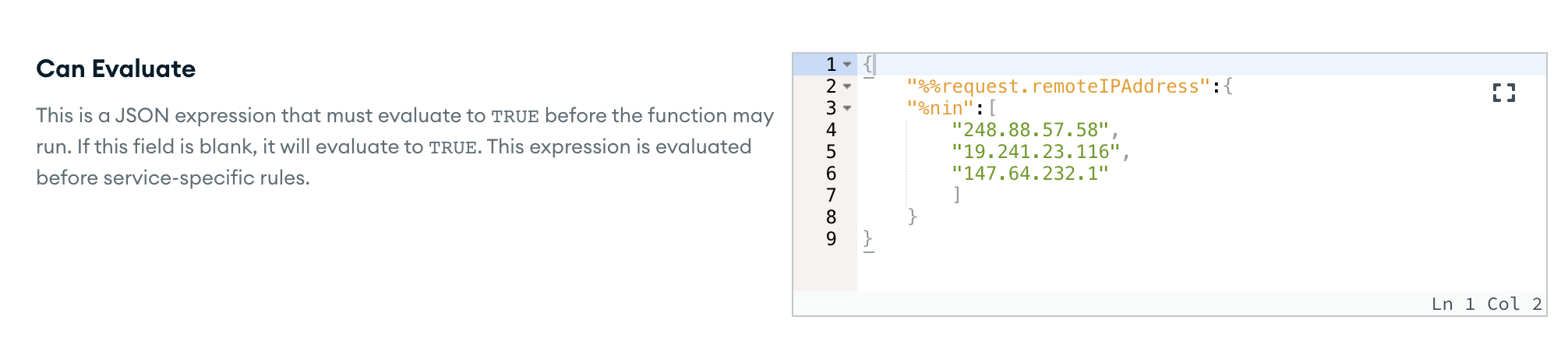
You can dynamically authorize requests based on the contents of each request by defining a Can Evaluate expression. Atlas evaluates the expression whenever the Function is called. If you do not specify an expression, Atlas automatically authorizes all authenticated incoming requests.
The expression can expand standard expression variables, including the %%request and %%user expansions.
Configure the Function's Privacy Level
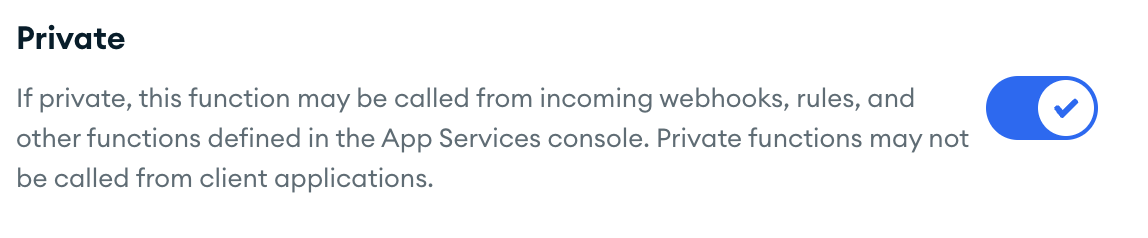
By default, you can call a Function from client applications as well as other Functions in the same application. You can prevent client applications from seeing or calling a Function by setting Private to true.
You can still call a private Function from expression and other Functions, including incoming webhooks and Triggers.
Write the Function Code
After you've created and configured the new Function, you can write the JavaScript code that runs when you call the Function.
You can write the code directly in the Atlas UI using the Function editor.
From the Create Function page, click the Function Editor tab.
Add JavaScript code to the Function. At minimum, the code must assign a Function to
exports, as in the following example:exports = function() { return "Hello, world!"; }; Note
You can use most modern (ES6+) JavaScript features in Functions, including async/await, destructuring, and template literals.
Authenticate a MongoDB Atlas User
Use your MongoDB Atlas Administration API Key to log in to the App Services CLI:
appservices login --api-key="<API KEY>" --private-api-key="<PRIVATE KEY>"
Write the Function Source Code
Atlas Functions run standard ES6+ JavaScript functions that you export from individual files.
Create a
.jsfile in thefunctionsdirectory or a subdirectory.The file name must match the Function name. Use slashes in the file name to indicate a subdirectory path.
touch functions/<FunctionName>.js
Tip
You can define Functions inside of nested folders in the functions directory. Use slashes in a Function name to indicate its directory path. For example, a Function named utils/add maps to functions/utils/add.js.
Write the Function source code in the created file.
For example, the following Function hello.js returns a greeting for the provided name:
exports = async function hello(...args) { // Write your function logic here! You can... // Import dependencies const assert = require("assert") assert(typeof args[0] === "string") // Use ES6+ syntax const sayHello = (name = "world") => { console.log(`Hello, ${name}.`) } // Return values back to clients or other functions return sayHello(args[0]) }
Note
You can use most modern (ES6+) JavaScript features in Functions, including async/await, destructuring, and template literals.
Configure the Function
In the functions directory of your local application, open the config.json file and add a configuration object for your new Function to the array.
The object must have the following form:
{ "name": "<Function Name>", "private": <Boolean>, "can_evaluate": { <JSON Expression> }, "disable_arg_logs": <Boolean>, "run_as_system": <Boolean>, "run_as_user_id": "<App Services User ID>", "run_as_user_id_script_source": "<Function Source Code>" }
Configure the user authentication:
Functions in Atlas always execute in the context of a specific application user or as a system user that bypasses rules. To configure the Function's execution user, specify the type of authentication that Atlas should use.
Note
Functions for Database and Scheduled Triggers always execute in the context of a system user.
System User: To execute the Function as a system user, use the following configuration:
System User Configuration{ "run_as_system": true, "run_as_user_id": "", "run_as_user_id_script_source": "" } Script: To execute the Function as a user returned from another Function, use the following configuration:
Script Configuration{ "run_as_system": false, "run_as_user_id": "", "run_as_user_id_script_source": "<Function Source Code>" } User (Deprecated): To execute a Function as a specific user, use the following configuration:
User ID Configuration (Deprecated){ "run_as_system": false, "run_as_user_id": "<App Services User Id>", "run_as_user_id_script_source": "" }
Configure the Function logs:
To include the arguments that the Function received in the log entry for each execution of the Function, set
disable_arg_logstofalse.Specify an Authorization expression:
You can dynamically authorize requests based on the contents of each request by defining a Can Evaluate expression. Atlas evaluates the expression whenever the Function is called. If you do not specify an expression, Atlas automatically authorizes all authenticated incoming requests.
The expression can expand standard expression variables, including the
%%requestand%%userexpansions.For example, the following expression only authorizes incoming requests if the sender's IP address is not included in the specified list of addresses:
Example Authorization Expression{ "%%request.remoteIPAddress": { "$nin": [ "248.88.57.58", "19.241.23.116", "147.64.232.1" ] } } Configure the privacy level:
To prevent client applications from seeing or calling the Function, set
privatetotrue.
Deploy Your Changes:
Push the Function configuration and source code to deploy it to your app. You can begin using the Function immediately.
Run the following command to deploy your changes:
appservices push
Call a Function
You can call a Function from another Function or using the App Services CLI.
The examples in this section demonstrate calling a simple Function named sum that takes two arguments, adds them, and returns the result:
// sum: adds two numbers exports = function sum(a, b) { return a + b; };
Call from a Function
You can call a Function from another Function through the context.functions interface, which is available as a global variable in any Function. The called Function runs in the same context as the Function that called it.
// difference: subtracts b from a using the sum function exports = function difference(a, b) { return context.functions.execute("sum", a, -1 * b); };
Call from the App Services CLI
You can call a Function through the App Services CLI with the function run command. The command returns the Function result as EJSON as well as any log or error messages.
appservices function run \ --name=sum \ --args=1 --args=2
By default, Functions run in the system context. To call a Function in the context of a specific user, include their User ID in the --user argument.
appservices function run \ --name=sum \ --args=1 --args=2 \ --user=61a50d82532cbd0de95c7c89
Constraints
Functions are capped at 300 seconds of runtime per request, after which a Function will time out and fail.
Functions may use up to 350MB of memory at any time.
Functions are limited to 1000 async operations.
Functions support most commonly used ES6+ features and Node.js built-in modules. However, some features that are uncommon or unsuited to serverless workloads are not supported. For more information, see JavaScript Support.
A Function may open a maximum of 25 sockets using the net built-in module.
Incoming requests are limited to a maximum size of 18 MB. This limit applies to the total size of all arguments passed to the Function.